How to Install the Vibe Prospecting MCP in Cursor and Grok Bot
Step-by-step guide to adding the Vibe Prospecting MCP server to Cursor and Grok Bot, testing the connection, and running your first B2B prospecting query.
Vibe Prospecting team6 min readSeptember 15, 2026
TL;DR
The Vibe Prospecting MCP server installs from the Cursor dashboard at cursor.com/dashboard/integrations, with no local config file to edit.
You need exactly two values: the name Vibe Prospecting and the server URL https://vibeprospecting.explorium.ai/mcp.
Added as a Team MCP server, it becomes available to everyone on the team instead of being set up machine by machine.
Each new conversation needs the toggle switched on from the plus menu under MCP Servers before the agent can call it.
Test the connection with a real prospecting ask, such as finding healthcare companies in the US with 50 to 500 employees using HubSpot.
The same team-level server is what Grok Bot uses, so one setup covers both surfaces.
Cursor can write your outbound tooling, but out of the box it has no idea which companies are worth writing to. Connecting the Vibe Prospecting MCP server fixes that in about two minutes: you add one remote endpoint in the Cursor dashboard, switch it on in a conversation, and the agent can search 150M+ companies and 800M+ professionals without you leaving the editor. This guide walks through the exact clicks, then covers the same setup for Grok Bot.
What You Need Before You Start
Two values and a Cursor account with team access are the whole prerequisite list. There is nothing to install locally, no config file to hand-edit, and no API key to paste into a JSON block.
Server name:Vibe Prospecting
Server URL:https://vibeprospecting.explorium.ai/mcp
Cursor access: an account that can reach the dashboard and add a Team MCP server
An Explorium account: free to create, used to authorize the connection on first call
Because the server is remote, it does not depend on your machine's Node version or stay alive in a background process. If it works once, it works for everyone on the team.
Step 1: Open Integrations & MCP in the Cursor Dashboard
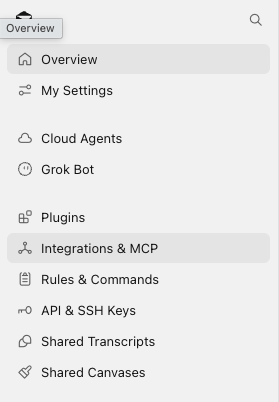
Go to cursor.com/dashboard/integrations and select Integrations & MCP in the left sidebar. This is the team-level home for connected tools, and it sits below Plugins in the navigation.
If you have never added a server before, the page opens on an empty state that reads No MCP servers yet. That is the expected starting point.
Step 2: Add the Vibe Prospecting MCP Server
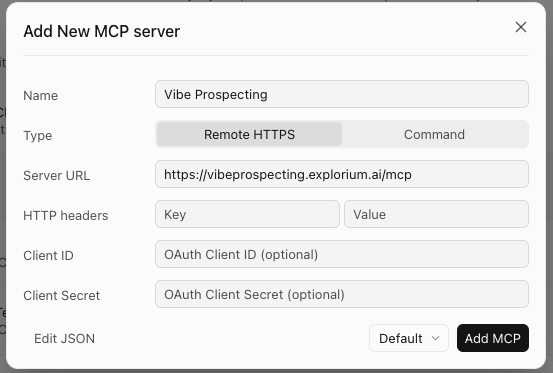
Click Add MCP in the Team MCP Servers panel. Either the button in the top-right corner or the one in the middle of the empty state opens the same dialog.
The Three Fields That Matter
The dialog offers more fields than you need. Fill in three and leave the rest alone.
Name:Vibe Prospecting. This is the label you will look for in the conversation toggle list, so keep it exact.
Type:Remote HTTPS, not Command. Vibe Prospecting is a hosted endpoint, not a local process.
Server URL:https://vibeprospecting.explorium.ai/mcp. The /mcp path is required.
Leave HTTP headers, Client ID, and Client Secret empty. Those are for servers that expect a pre-provisioned OAuth app; Vibe Prospecting handles authorization on the first call instead.
Click Add MCP to save. The server now appears in the Team MCP Servers list for everyone on the team.
If you prefer editing configuration directly, the Edit mcp.json button in the same panel accepts the equivalent entry:
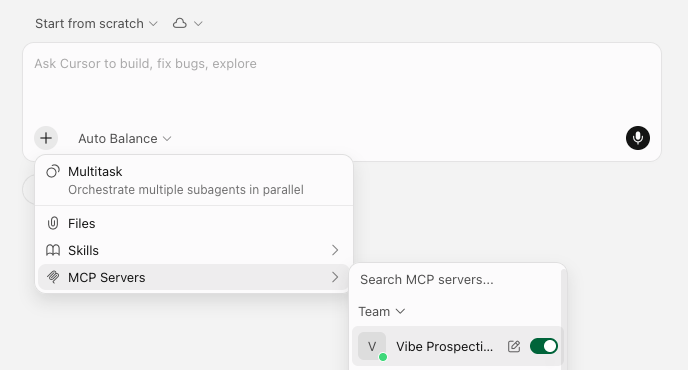
Adding the server makes it available; it does not switch it on. Open a new conversation, click the plus sign in the composer, hover MCP Servers, and flip the Vibe Prospecting toggle to on. A green toggle with a green status dot next to the server name means the agent can call it.
This is the step people skip. If a prospecting question comes back as a generic answer with no tool call, check the toggle before you check anything else.
Step 4: Run Your First Prospecting Query
Test the connection with a real request, not a "are you there" ping. A concrete ask exercises company search, firmographic filters, and technographic filters in one call, which tells you far more than a handshake.
Paste this into the conversation:
Prompt
Find companies in the healthcare industry in the US with 50 to 500 employees using Hubspot
Reading the Result
A working connection returns a tool call, a result count, and structured rows. Three things to look for:
A visible tool invocation. The agent should show that it called Vibe Prospecting, not that it reasoned about healthcare companies from memory.
A count before the rows. Results arrive with how many matched, which is your signal that filters were applied server-side.
Filters echoed back. Industry, headcount band, geography, and the HubSpot technographic should all be reflected in what comes back.
If a filter is too narrow to return anything, the agent will say so and suggest widening it rather than quietly returning an empty list. That behavior is the point of using a data layer instead of letting a model guess.
Using Vibe Prospecting with Grok Bot
Grok Bot draws on the same Team MCP Servers list, so the server you just added is already available to it. Both surfaces live in the same Cursor dashboard, which is why there is no second installation to perform.
Setup: none beyond Steps 1 and 2. The server is team-scoped, not editor-scoped.
Enablement: the same per-conversation rule applies. Make sure Vibe Prospecting is switched on for the conversation before you ask for data.
Prompting: keep asks specific. Name the industry, the size band, the geography, and any tool the account should be running.
The practical upshot is one server entry covering both the editor agent and the bot, so a teammate who works mostly in Grok Bot gets the same verified data as someone living in Cursor all day.
What You Can Ask For Once It Is Connected
The healthcare query is a starting point, not the ceiling. With the server connected, the same conversation can move from a list to a campaign-ready file without exporting to another tool.
Company search: filter by industry, headcount, revenue band, region, and technology stack.
Contact discovery: find the decision makers at those accounts by role and seniority.
Enrichment: fill gaps on a list you already have, including firmographics and technographics.
Buying signals: layer events such as funding rounds, leadership hires, and website changes on top of an ICP.
Export: hand the result off as a CSV for your sender or CRM.
For prompt patterns that go deeper on each of these, the Vibe Prospecting prompt library has ready-made asks you can paste directly into Cursor.
Troubleshooting a Connection That Does Not Work
Nearly every failed setup traces back to one of four things. Work down the list in order.
The toggle is off. Per-conversation enablement does not carry over from an older chat. Open the plus menu and confirm the toggle is green.
The URL is missing /mcp. The base domain alone will not resolve as an MCP endpoint. The full value is https://vibeprospecting.explorium.ai/mcp.
Type is set to Command. Switch it back to Remote HTTPS. Command expects a local executable that does not exist here.
Authorization was never completed. If the first call prompted you to connect an Explorium account and the prompt was dismissed, run the query again and complete it.
Still stuck after that? Get in touch with the server name and the exact query you ran, and we can trace the call.